SSH Machines
!!! tip "Pro feature" SSH machines require RemoteX Pro.
RemoteX connects to remote servers using SSH key authentication. Passwords are never stored.
Managing machines
Open Menu → Manage Machines to see the full machine list. From here you can add, edit, and delete machines.
!!! note The Manage Machines menu item is locked on the free tier.
Add Machine dialog
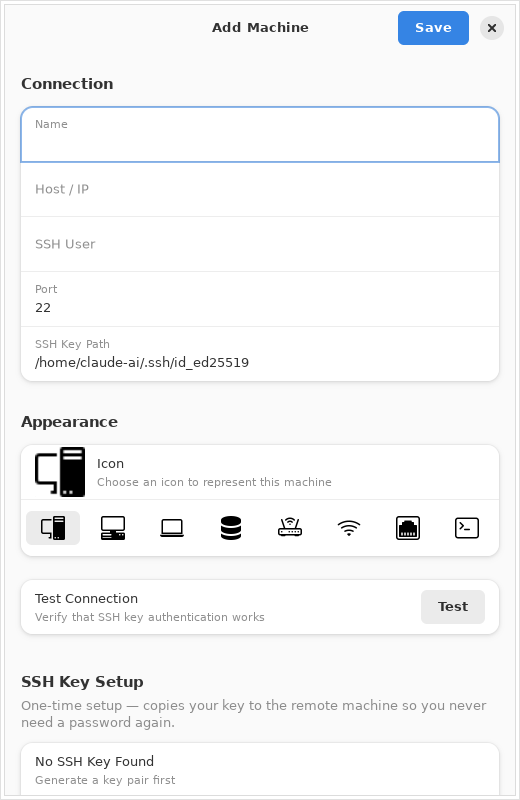
Click + in the Machines dialog to open the Add Machine form.
Name
A display name used only inside RemoteX. Choose something descriptive — you will see this name in button editors and the machine picker.
Examples: Plex Server, Pi-hole, Work VPS, NAS
Host / IP
The IP address or hostname of the remote machine. This must be reachable from your computer over the network.
Examples: 192.168.1.50, plex.local, myserver.example.com
SSH User
The username to log in with on the remote machine.
Examples: pi, ubuntu, admin, yourname
Port
The SSH port. Default is 22. Change this only if your server runs SSH on a non-standard port.
SSH Key Path
The path to the private key file used for authentication.
Examples: ~/.ssh/id_rsa, ~/.ssh/id_ed25519, ~/.ssh/myserver_key
If the field is empty, RemoteX falls back to your SSH agent or the default key (~/.ssh/id_rsa).
!!! note
Keys with a passphrase require a running ssh-agent with the key loaded. If the key is locked, RemoteX shows a clear error — it will not prompt for the passphrase interactively.
Icon
A visual icon shown next to the machine name in the picker dialog and the machine list. Six icons are available: desktop, laptop, server, router, Wi-Fi access point, and a generic device.
SSH key setup
If you don't have an SSH key pair yet, RemoteX can generate one for you and copy the public key to the server:
- Click Generate SSH key — RemoteX creates an Ed25519 key pair in
~/.ssh/ - Click Copy key to server — enter your password once (it is not stored). This runs
ssh-copy-idinternally - Future connections use the key automatically, no password needed
Testing the connection
Click Test in the machine dialog. RemoteX runs echo remotex-ok on the remote host. A green message confirms the connection works. If it fails, the full error from SSH is shown.
Run the test after adding a machine and whenever you change credentials.
Assigning machines to a button
In the Button Editor, the Target machines section shows your machines as toggle switches. Enable the machines you want.
The machine picker
When a button has two or more targets enabled, clicking it opens the machine picker dialog.
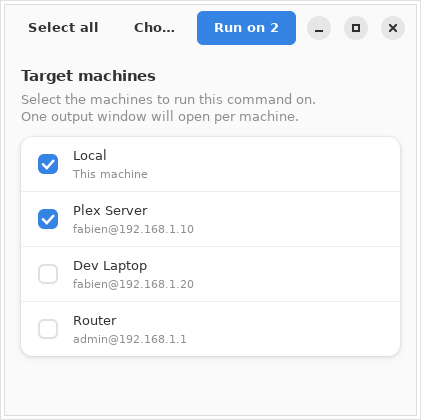
The picker lists each enabled target. Select one and click Run. The command runs on the selected machine only.
!!! tip If you want to run on all machines at once without picking, you can do so by creating separate buttons per machine, or by using multi-select to run them in sequence.
Output modes over SSH
All three execution modes work over SSH:
| Mode | Behaviour |
|---|---|
| Silent | Result shown as a toast notification |
| Show output | Remote stdout/stderr displayed in a dialog after the command finishes |
| Open in terminal | RemoteX generates an ssh -t command and opens it in your terminal emulator — full interactive session |