Button Editor
The Button Editor opens when you create a new button (+ / Ctrl+N) or edit an existing one (right-click → Edit).
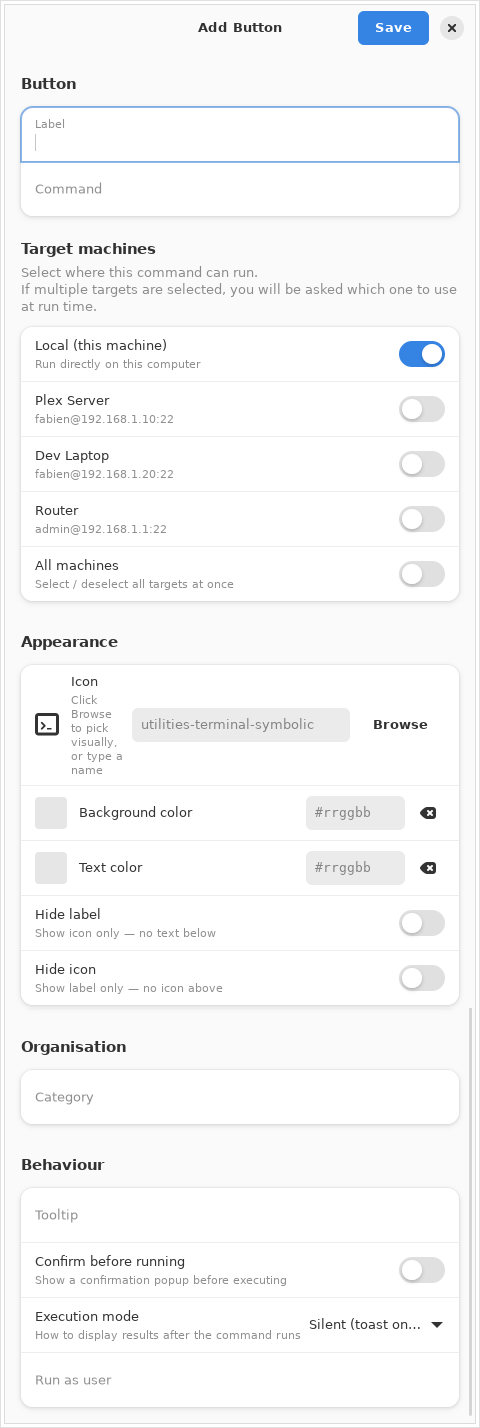
Label
The text displayed on the button tile in the grid. Keep it short — long labels are truncated on small tiles.
Command
The shell command to execute. This is a full bash command line. Examples:
df -h                             # disk usage summary
ping -c 4 8.8.8.8                 # connectivity check
sudo systemctl restart nginx      # restart a service
git -C ~/myproject pull           # update a repo
tar -czf ~/backup.tar.gz ~/docs   # create an archive
You can use shell features: pipes (|), redirects (>), command substitution ($()), and multi-statement chains (&&, ;).
!!! warning Commands run as your current user (or via sudo if you include it in the command). There is no sandbox — the command has full access to your filesystem. Only add commands you trust.
Target machines
Determines where the command runs. The list shows Local at the top, followed by all your configured SSH machines.
Local — runs on your computer using a standard subprocess. No SSH required.
SSH machine — enable one or more machines using their toggle switches. The command is executed on each enabled machine over SSH.
- If only Local is enabled: runs locally, no picker.
- If one machine is enabled (and Local is off): runs on that machine directly, no picker.
- If two or more targets are enabled: a machine picker dialog appears at click time.
All machines — a toggle at the top of the machine list to select/deselect all machines at once. Useful when you want a command to run anywhere.
!!! tip "Pro feature" Adding SSH machines requires RemoteX Pro. On the free tier, only Local is available.
Appearance
Icon
Choose an icon from the built-in icon picker. Only icons available and renderable on your system are shown.
Type in the search field to filter by name. The selected icon is previewed on the button preview at the top of the dialog.
To remove the icon entirely, enable Hide icon (see below).
Background color
The fill color of the button tile. Click the color field to open the color picker:
- A 40-color GNOME palette for quick selection
- A hex input field (
#rrggbb) for exact values
Leave blank for the default system tile color.
Text color
The color of the button label. Independent from the background color. Same picker as above.
Leave blank to use the default label color (adapts automatically to light/dark mode).
Hide label
When enabled, the button label is hidden — only the icon is shown. Useful for very small tiles or instantly recognisable icons.
Hide icon
When enabled, the icon is hidden — only the label text is shown. Useful when no icon fits or when the label alone is clear enough.
Organisation
Category
Type a category name to assign this button to a group. Buttons sharing the same category name appear under the same pill tab in the category bar.
- Names are case-sensitive (
Serverandserverare different categories) - Leave blank to leave the button uncategorised
- To rename a category, edit all buttons in it and change the category name
Right-clicking a button in the grid also offers Move to category for quick reassignment.
Behaviour
Tooltip
Custom text shown when hovering the mouse over the button. If left blank, the tooltip defaults to the command string.
Use this to add a human-readable description when the command itself is not self-explanatory.
Confirm before running
When enabled, clicking the button shows a confirmation dialog ("Run this command?") before executing. Useful for destructive commands like reboots, shutdowns, or deletions.
The global default for this toggle can be set in Preferences → General → Confirm before running by default.
Execution mode
Controls what happens after the command runs.
| Mode | Behaviour |
|---|---|
| Silent | The command runs in the background. A toast shows success or failure. |
| Show output | A dialog opens with the full stdout / stderr after the command finishes. |
| Open in terminal | The command is launched in your system terminal emulator (full interactive session). |
!!! tip Show output opens automatically on failure regardless of the mode selected — you always see the error.
Use **Open in terminal** for interactive programs: `htop`, `vim`, `python3`, `ssh` sessions, etc.
Run as user
Only active when Execution mode is Open in terminal. Fill this field with a username (e.g. www-data, postgres) to prepend sudo -u <user> to the command. Useful for commands that must run under a specific service account.
Saving
Click Save to confirm. The button appears immediately in the grid at the next available position.
To cancel without saving, press Escape or click outside the dialog.