Main Window
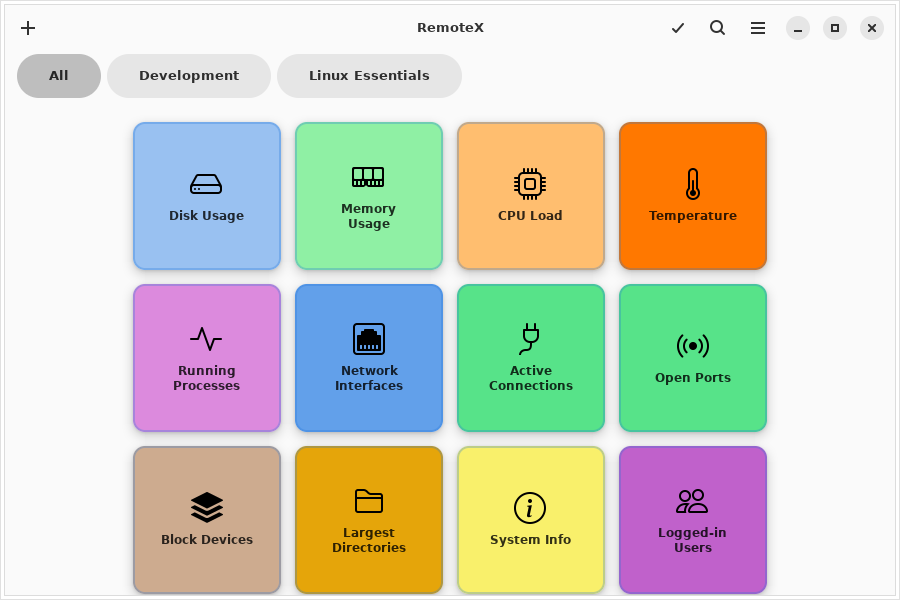
The main window is divided into four zones: the header bar, the category bar, the search bar, and the button grid.
Header bar
The header bar is always visible. From left to right:
+ (Add button)
Opens the Button Editor to create a new button. Keyboard shortcut: Ctrl+N.
!!! note The free tier allows up to 3 custom buttons. The + button is greyed out once the limit is reached. RemoteX Pro removes this limit.
Search icon
Toggles the search bar. You can also start typing anywhere in the window to open it automatically.
Select mode icon (☑)
Enters multi-select mode. In this mode, clicking a button toggles its selection instead of running it. An action bar appears at the bottom for bulk operations.
!!! tip "Pro feature" Multi-select requires RemoteX Pro.
Hamburger menu (≡)
Opens the application menu:
- Manage Machines — opens the machine list dialog (Pro only)
- Always on top — toggles whether the window floats above all other windows (stateful toggle, checked when active)
- Preferences — opens the preferences dialog (
Ctrl+,) - Keyboard shortcuts — shows all shortcuts (
Ctrl+?) - About RemoteX — version and license info
Category bar
The category bar appears below the header when at least one button has a category assigned. It is hidden when all buttons are uncategorised.
All pill
The leftmost pill. Selecting it shows the full grid regardless of categories. It is selected by default.
Category pills
One pill per category, in the order categories first appear in the grid. Clicking a pill filters the grid to that category only. Only one pill can be active at a time (radio behaviour).
Right-click on a pill
Right-clicking a category pill opens a small menu:
- Hide category — removes the pill and hides all buttons in that category from the grid. The buttons are not deleted.
To reveal a hidden category again, go to Preferences → Categories and toggle it back on.
Search bar
The search bar slides in below the category bar when activated. It filters buttons in real time by their label name. The filter applies on top of any active category filter.
Press Escape or click the search icon again to close the search bar and clear the filter.
Button grid
The main content area is a scrollable grid of button tiles. The number of columns is set in Preferences → Grid Layout → Buttons per row and applies live without restarting.
Drag and drop any button to reorder it within the grid.
Button tiles
Each tile displays:
- An icon (top or center, depending on size)
- A label (the button name)
The tile background and label color can be customised per button.
Left-click a tile to run the command. If the button has Confirm before running enabled, a dialog asks for confirmation first. If the button targets multiple machines, a machine picker appears.
Right-click a tile to open the context menu:
- Edit — opens the button editor for this button
- Duplicate — creates a copy of the button
- Move to category — type or pick a category name to reassign
- Delete — permanently removes the button (confirmation required)
!!! note Default buttons (Linux Essentials, Development) cannot be edited on the free tier. Right-clicking them shows the Edit option with a lock icon. RemoteX Pro unlocks editing.
Toast notifications
After a command runs, a small toast notification slides up from the bottom of the window:
- Success toast — command completed successfully
- Failure toast — command failed (exit code non-zero)
For commands with Show output mode, or for any command that fails, an output dialog opens automatically with the full stdout and stderr.
Empty state
If no buttons match the current search or category filter, an empty state illustration is shown with a hint. This is not an error — it just means all buttons are filtered out. Click All or clear the search to see your buttons again.
If you have no buttons at all (unusual after a fresh install), the empty state shows a prompt to add your first button.