Multi-select
!!! tip "Pro feature" Multi-select requires RemoteX Pro.
Multi-select lets you perform bulk operations on several buttons at once — reassigning categories, changing machines, or deleting a group.
When to use multi-select
- You migrated to a new server and need to reassign 10 buttons to it
- You want to move a whole set of buttons to a different category
- You created a batch of temporary buttons and want to delete them all at once
- You duplicated several buttons and need to clean up quickly
Entering select mode
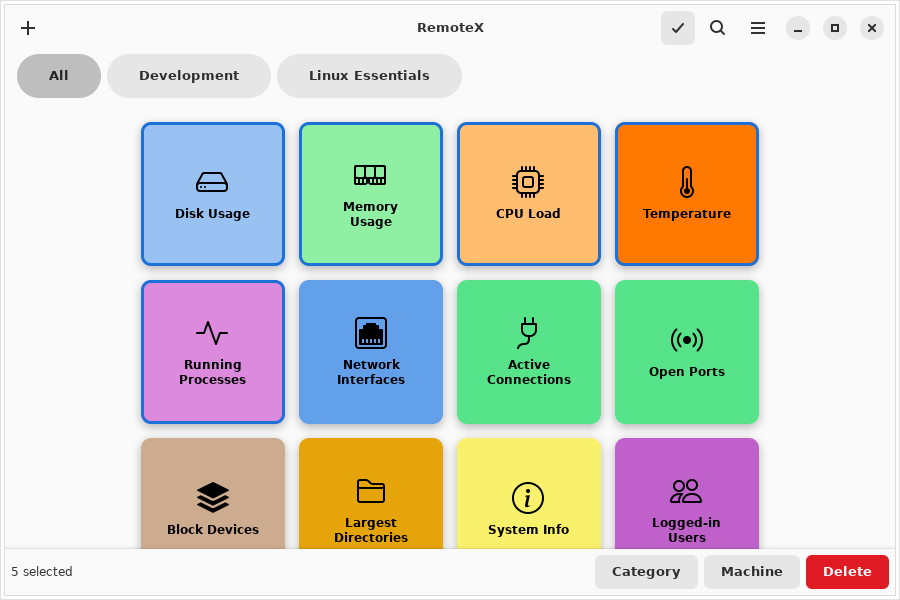
Click the select icon (☑) in the header bar. The grid switches to selection mode:
- Clicking a button toggles its selection (highlighted in blue) instead of running it
- The header bar shows the count of selected buttons
- An action bar appears at the bottom of the window
Press Escape or click the select icon again to exit without applying any action.
Selecting buttons
Click to toggle
Click any button tile to select it. Click it again to deselect. Selected tiles are highlighted in blue.
Rubber-band selection
Click and drag on an empty area of the grid (not on a button) to draw a selection rectangle. All buttons the rectangle overlaps are added to the current selection.
!!! tip Start the drag gesture from the margins around the button grid — the space between tiles or the padding around the edges. Starting directly on a button toggles that button instead of drawing a rectangle.
Combining both methods
You can mix click and rubber-band freely. Click individual buttons first, then rubber-band to add a group, then click to deselect specific ones.
Group actions
The action bar at the bottom shows available operations once at least one button is selected.
Delete
Permanently removes all selected buttons. A confirmation dialog shows the count ("Delete 5 buttons?"). This cannot be undone.
Default buttons (Linux Essentials, Development) can be deleted even on the free tier.
Category
Assigns all selected buttons to a category. A small input dialog asks for the category name:
- Type a new name to create a new category
- Type an existing category name to move the buttons into it
- Leave blank and confirm to remove the category assignment (buttons become uncategorised)
Machine
Assigns all selected buttons to an SSH machine. A picker lists your configured machines plus Local:
- Select a machine → all selected buttons are updated to target that machine only (their previous machine targets are replaced)
- Select Local → all selected buttons are set to local execution
!!! note The Machine action replaces the target on each button, not appends. If you want multi-machine buttons, edit them individually in the Button Editor.
Exiting select mode
Click the select icon (☑) or press Escape to leave select mode. The grid returns to normal — clicking buttons runs commands again.